Last updated: October 2026
Not long ago, removing a background, fixing a bad shadow or extending a photo meant hours in complicated software. Today most of it takes a few clicks. AI photo editors can cut out objects, fill gaps, sharpen blurry shots and clean up product pictures in seconds, and some of them are free.
This guide compares the best AI photo editors in 2026 for different needs: professional editing, quick design work, product photos, free browser editing and photo restoration. It also explains what AI can and cannot do well, so you do not waste money on features you will never use.
Quick Answer: The Best AI Photo Editors at a Glance
- Best for professional editing: Adobe Photoshop, with Generative Fill.
- Best for quick design and social posts: Canva.
- Best for product photos and online shops: Photoroom.
- Best free editor in the browser: Pixlr.
- Best one-time purchase for photographers: Luminar Neo.
- Best for sharpening and enlarging photos: Topaz Photo AI.
If you only need to make an image from a text description rather than edit a photo, see our guide to the best AI image generators.
The Best AI Photo Editors Compared
| Tool | Best for | Free option | Price (approx.) |
|---|---|---|---|
| Adobe Photoshop | Professional edits, generative fill | Free trial | About $22.99/month |
| Canva | Design, social posts, quick edits | Yes, capable | Pro about $120/year |
| Photoroom | Product photos, background removal | Yes, limited | Pro about $7.99/month |
| Pixlr | Free editing in the browser | Yes | Paid plans available |
| Luminar Neo | Photographers who prefer no subscription | Trial | About $99 one-time (desktop) |
| Topaz Photo AI | Sharpening, noise removal, upscaling | Trial | About $199 one-time, with paid updates |
Prices come from the companies’ pages and third-party reviews, are approximate and change often. Some plans differ by country and billing period, so confirm on each official pricing page before you pay.
How We Chose These Tools
This comparison is based on each company’s official information, pricing pages and widely published reviews. We ran one small hands-on test, described below, and we have not run a full test of every tool, so treat this as a guide and try the free versions on your own photos. We looked at five things: quality of the AI results, ease of use, price and free options, how well it fits different users and how much control you keep over the final image.
We Tried One Background Removal Test
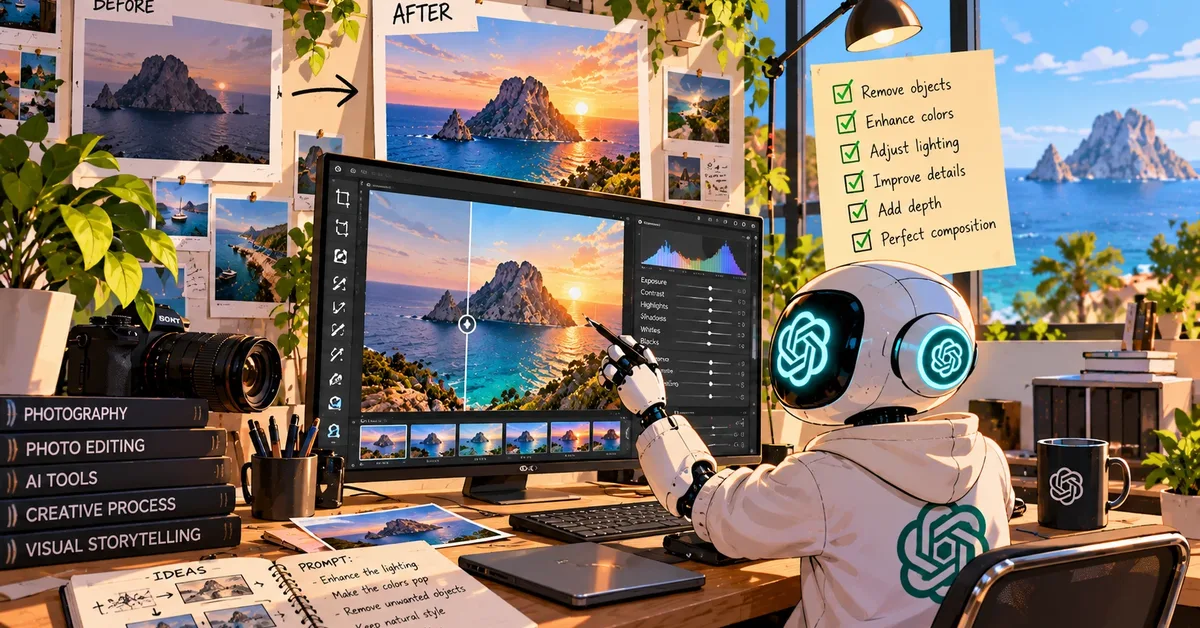
To see what these tools do in practice, we ran a small hands-on test on October 12, 2026. We took one illustrated image, a robot at a desk in front of a window with a sea view, and uploaded it to the free background remover on Photoroom’s website, without logging in. We looked only at the preview and did not download the result. It is a single image, so treat it as a snapshot and not as a ranking.
What Photoroom did
Photoroom removed the wall, the window with the sea view and most of the plants, and kept the robot, the desk, the monitor, the camera and the stack of books as one subject. The edges around the robot and the desk were clean.
It also made one visible mistake: the photo shown on the monitor screen lost a cloud-shaped piece, which became transparent, as if it were part of the background. A few small bits of plant leaves stayed near the camera.
What we noticed
- The tool decided on its own what counts as the subject. With a busy scene it kept the whole desk, not only the robot. With a single product on a plain surface, the result should be simpler.
- AI can mistake an image inside another image for background. Always zoom in on screens, windows and reflections before you use a cutout.
- The free web tool worked without an account for the preview. Downloading and editing further may ask you to sign up, and we did not test that part.
A change worth knowing about
While testing, we opened the upload page of remove.bg, another well-known background remover. At the time of our test it showed a notice saying the tool is moving to Canva and that the standalone website would stop being available on December 1, 2026 at 9:00 CET. If you rely on remove.bg, check Canva’s background remover or another tool before that date. We could not complete an upload test on remove.bg or Pixlr, so this article does not compare their results.
Professional Editing
1. Adobe Photoshop
Photoshop is still the standard for serious image editing, and its AI tools are now a big part of it. Generative Fill lets you select an area, describe what you want and let the AI add, replace or remove things, while Generative Expand extends the edges of a photo. It also has strong selection tools that isolate people and objects with a click.
Pros: the most powerful editor here, precise control, AI that blends into real editing. Cons: it is a subscription, and the learning curve is steep. Best for: professionals and anyone who edits images every week.
Design and Social Media
2. Canva
Canva is not only a photo editor, but its AI features make it one of the easiest ways to improve a picture. You can remove backgrounds, erase unwanted objects, resize a design for different platforms and generate extra elements. Most of the basics work on the free plan, and some of the more advanced AI tools need the paid plan.
Pros: easy for beginners, templates for everything, useful free plan. Cons: less precise than Photoshop, and some AI tools are paid. Best for: social posts, banners and small business visuals. See also our guide to the best AI tools for small business.
Product Photos and Online Shops
3. Photoroom
Photoroom is built around product photography. You photograph an item with your phone, the AI removes the background and you place the product on a clean or styled scene. It also resizes images for marketplaces and online shops and can create consistent product pictures in batches.
Pros: fast and made for sellers, works on a phone, affordable paid plan. Cons: more limited for general photo editing. Best for: shop owners and sellers who need many clean product images.
Free Editors
4. Pixlr
Pixlr is a browser-based editor with an interface similar to classic desktop editors. It includes AI tools such as background removal and generative features, and you can use a good part of it for free. It is a handy option when you need a quick fix without installing anything.
Pros: runs in the browser, free to start, familiar layout. Cons: the free version has limits, and advanced features need a paid plan. Best for: quick edits on a budget. Looking for more no-cost options? See our list of the best free AI tools.
For Photographers
5. Luminar Neo
Luminar Neo is a photo editor focused on AI-assisted enhancements, such as sky replacement, portrait retouching and lighting adjustments. Its main appeal is that you can buy it once instead of paying every month, though some options and updates may be sold separately.
Pros: no subscription needed for the basic purchase, strong creative effects. Cons: results can look over-processed if you push the sliders. Best for: hobby and semi-professional photographers.
6. Topaz Photo AI
Topaz Photo AI specializes in fixing technical problems: it reduces noise, sharpens soft images and upscales small photos to a larger size. It works well on old or low-quality pictures. It is sold as a one-time purchase, with a paid option to keep receiving updates.
Pros: excellent for sharpening and enlarging, good for rescuing poor photos. Cons: not a full editor, and it costs more than the other tools here. Best for: photographers and anyone restoring old images.
Which AI Photo Editor Should You Choose?
| If you want to… | Choose | Why |
|---|---|---|
| Edit like a professional | Photoshop | Most control and the strongest AI tools |
| Make social posts quickly | Canva | Easy, with templates |
| Photograph products for a shop | Photoroom | Built for product images |
| Edit for free in your browser | Pixlr | No installation |
| Avoid a subscription | Luminar Neo | One-time purchase |
| Sharpen or enlarge a photo | Topaz Photo AI | Specialized in image quality |
Want to turn photos into video content? Read our guide to the best AI video generators.
What AI Photo Editing Can and Cannot Do
- It is great at: removing backgrounds, erasing small objects, extending a scene, fixing lighting and sharpening soft images.
- It struggles with: hands, text inside images, fine details and anything that must be exactly accurate.
- Be honest about edits. If you sell products, do not use AI to change how an item looks in a way that misleads buyers. Show what the customer will really receive.
- Check the license. Before using AI-edited images commercially, read each tool’s terms, especially for images that include other people’s work or logos.
- Keep the original. Save an untouched copy before you apply AI edits, so you can go back.
Frequently Asked Questions
What is the best free AI photo editor?
Canva and Pixlr both offer capable free versions. Canva is better for design and social posts, and Pixlr is closer to a classic editor. Photoroom also has a limited free plan for product photos.
Is Photoshop worth it for AI editing?
If you edit images often and need precision, yes. For occasional edits, a free tool or Canva is usually enough.
Can AI remove the background from a photo?
Yes. Canva, Photoroom, Pixlr and Photoshop can all do it, and it is one of the easiest and most reliable AI features.
Can I use AI-edited photos to sell products?
Often yes, but the image should still represent the product honestly. Check each tool’s terms and the rules of the marketplace where you sell.
Can AI fix a blurry photo?
It can improve many blurry or noisy photos, especially with tools like Topaz Photo AI. It cannot recover details that were never captured, so very blurry images may still look artificial.
Do I need a powerful computer?
Browser tools such as Canva and Pixlr and mobile apps such as Photoroom work on most devices. Desktop programs like Photoshop, Luminar Neo and Topaz run better with a modern computer.
Our Take
You do not need every tool on this list. Most people are well served by Canva or Pixlr for everyday edits. Sellers should try Photoroom for product images, and anyone who edits professionally will get the most out of Photoshop. Start with the free versions, test them on your own photos and pay only when a tool clearly saves you time.
Keep Reading
Independence and Updates
This article is independent. We have no sponsorship from any company mentioned, and we do not currently earn commissions from the tools covered. If that changes, we will disclose it clearly. We update this page when prices or major features change.
Disclaimer: AI products, prices and features change quickly. The information here was accurate when last updated, but always verify details on the official websites before making a decision.